---
title: How to manage the myhrtoolkit Document library | HR software guide
description: Learn how to add, store and delete documents from the Document library on myhrtoolkit, a central part of the document management features on the system.
---

** Call us **

Menu **

[0345 225 0414](tel:03452250414)

- [Customer Support **](https://www.myhrtoolkit.com/support)
- [Login **](https://app.myhrtoolkit.com/user_portal/)

[![myhrtoolkit-agilio-logo-colour-800px](https://www.myhrtoolkit.com/hs-fs/hubfs/Logos%20and%20Brand/myhrtoolkit-agilio-logo-colour-800px.png?width=800&height=82&name=myhrtoolkit-agilio-logo-colour-800px.png "myhrtoolkit-agilio-logo-colour-800px")](http://myhrtoolkit.com)

[![myhrtoolkit-agilio-logo-white](https://www.myhrtoolkit.com/hs-fs/hubfs/Logos%20and%20Brand/myhrtoolkit-agilio-logo-white.png?width=1000&height=103&name=myhrtoolkit-agilio-logo-white.png "myhrtoolkit-agilio-logo-white")](http://myhrtoolkit.com)

# Using the Document library - Managers & Controllers

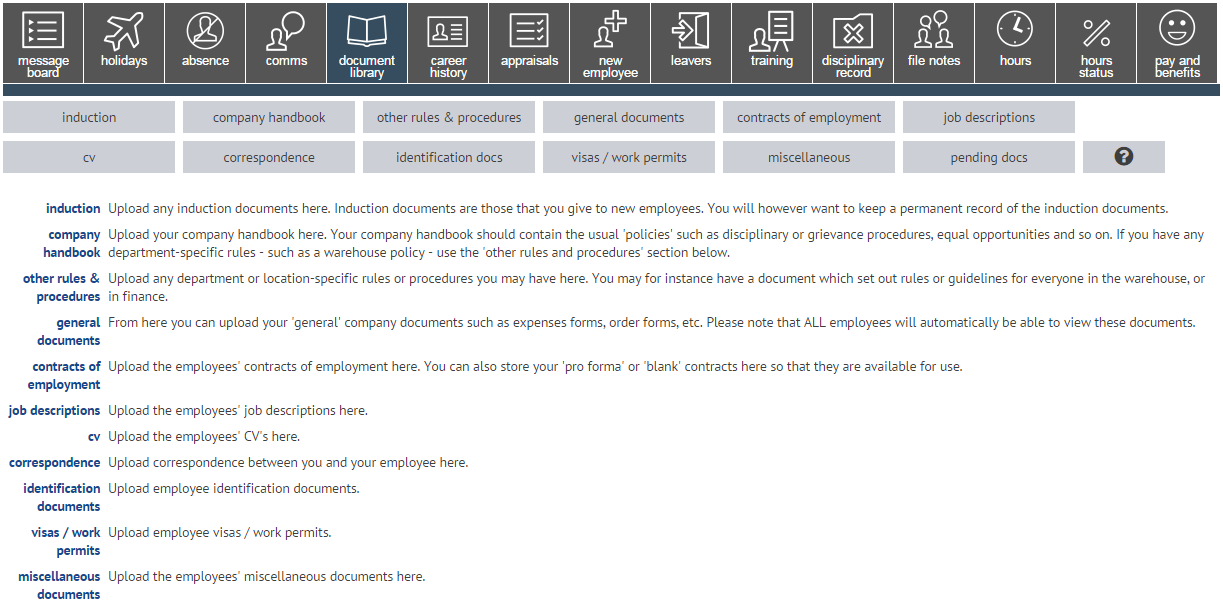
As part of the [document management](https://www.myhrtoolkit.com/features/document-management/) feature, myhrtoolkit provides a Document library, an area where various company documents can be found and distributed at any time.
[![myhrtoolkit document library](https://www.myhrtoolkit.com/hs-fs/hubfs/supportal_images/DocumentManagement_Mgmt_01_Menu.png?width=800&name=DocumentManagement_Mgmt_01_Menu.png)](https://www.myhrtoolkit.com/hubfs/supportal_images/DocumentManagement_Mgmt_01_Menu.png)


### How do I...

** Upload company-wide documents to myhrtoolkit?

See our dedicated guide to [uploading company-wide documents](https://www.myhrtoolkit.com/support/how-to-guides/uploading-company-wide-documents/) using the Document library.

** Upload employee-specific documents to myhrtoolkit?

We have also created a step-by-step guide for [uploading employee-specific documents](https://www.myhrtoolkit.com/support/how-to-guides/uploading-employee-documents/) to the Document library.

** Manage Template documents in myhrtoolkit?

Several of the Document library categories have a Templates section, allowing Managers or Controllers to upload template documents. These can then be used to create 'live' documents before being allocated to team members in the normal way.

Template enabled areas are Induction, Other rules & procedures, Contracts of employment, and Job descriptions. Within a document category, click the "Template documents" link to access the Templates section.

A template document can be seen, downloaded and deleted by any Manager (with access to that tab) and Controllers.

The template function or documents are not visible within the myhome user area.

** Control what document types managers can upload? (Controllers only)

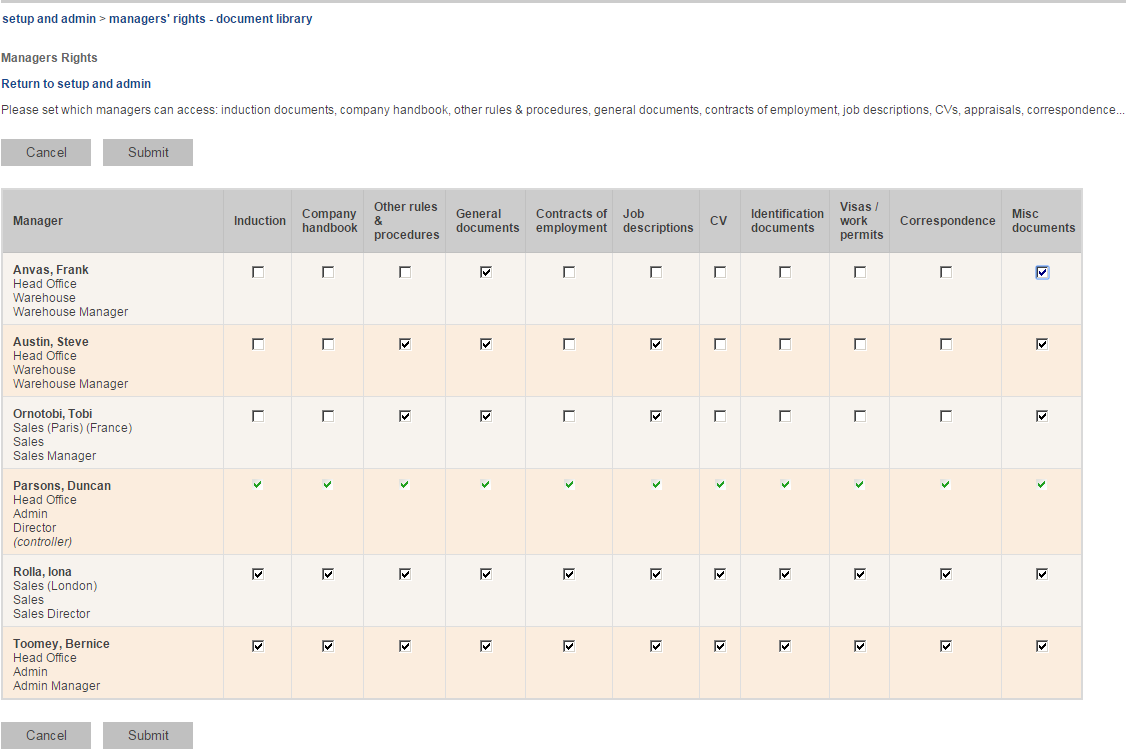
Managers can only upload documents types for which they have permissions, as allocated by Controllers. To grant and/or remove access rights, navigate to Config > Access rights > Managers' document rights.
[![Assigning controllers to document management](https://www.myhrtoolkit.com/hs-fs/hubfs/supportal_images/DocumentManagement_Mgmt_05_Controllers.png?width=800&name=DocumentManagement_Mgmt_05_Controllers.png)](https://www.myhrtoolkit.com/hubfs/supportal_images/DocumentManagement_Mgmt_05_Controllers.png)

Once the new selections have been made, submit the page to record them.

If the changes were made whilst the relevant manager(s) were logged in to myhrtoolkit, they may need to log out and log in again to see the changes in the Management dashboard.

> ***Notes***
> 
> - Employees will be able to see all document tabs in their Myhome area, but will only see documents that have been made available to them.
> - Managers will also be to see all tabs in their Myhome, but this is only for viewing purposes (as a User).
> - Documents uploaded by managers become system documents, and can also be sent by all other managers to their reports.
> - Controllers can see all documents.
> - ID Documents and Visas are visible to managers and controllers, but not to employees.
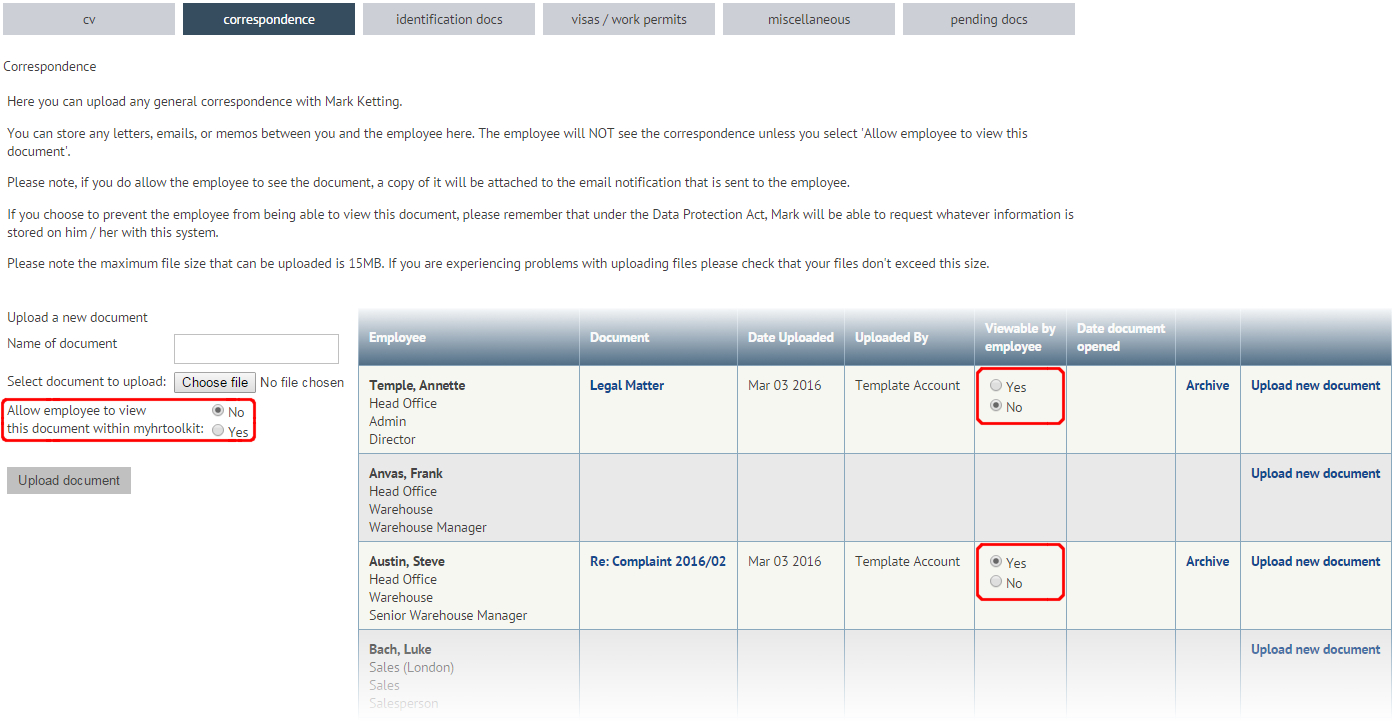
> - Correspondence documents may be hidden from employees. This can be chosen at the upload stage (the default is that they cannot). After upload, the visibility can be changed as required.
> 
> [![Correspondence document options on myhrtoolkit](https://www.myhrtoolkit.com/hs-fs/hubfs/supportal_images/DocumentManagement_Mgmt_06_Correspondence_Bundle.png?width=700&name=DocumentManagement_Mgmt_06_Correspondence_Bundle.png)](https://www.myhrtoolkit.com/hubfs/supportal_images/DocumentManagement_Mgmt_06_Correspondence_Bundle.png)

** Control Users’ access to ID/Visa documents? (Controllers only)

Controllers can specify the visibility of the Identification docs and Visas / work permits tabs.

Navigate to Config > System > People > Employee access to information. Select the answers you would prefer for the “*Do you want employees to be able to view the identification documents in their Myhome page?*” and “*Do you want employees to be able to view visas / work permits in their Myhome page?*” questions. When answered “*yes*” for a user, the user will see the relevant tabs in Myhome > Document library.

Managers always have these tabs available.

> ***Note*** – This feature was introduced in September 2016. Users present on the system on the 22nd September 2016 will have this setting is turned off by default, all new users since then will have it turned on by default.


This is a search field with an auto-suggest feature attached.

- There are no suggestions because the search field is empty.

- User Guides
- Configuration
- First Time Setup

- [Overview](https://www.myhrtoolkit.com/support_categories/overview/)
- [Login/passwords](https://www.myhrtoolkit.com/support_categories/login-passwords/)
- [Multi-factor Authentication](https://www.myhrtoolkit.com/support_categories/multi-factor-authentication-guides)
- [Holidays](https://www.myhrtoolkit.com/support_categories/holidays/)
- [Absence](https://www.myhrtoolkit.com/support_categories/absence/)
- [Communications](https://www.myhrtoolkit.com/support_categories/communications/)
- [Document library](https://www.myhrtoolkit.com/support_categories/document-library/)
- [Performance Management](https://www.myhrtoolkit.com/support_categories/performance-management)
- [Starters and leavers](https://www.myhrtoolkit.com/support_categories/starters-and-leavers/)
- [Training](https://www.myhrtoolkit.com/support_categories/training/)
- [Pay and Benefits](https://www.myhrtoolkit.com/support_categories/pay-benefits)
- [Reports](https://www.myhrtoolkit.com/support_categories/reports/)
- [Tasks](https://www.myhrtoolkit.com/support_categories/tasks/)
- [Variable hours](https://www.myhrtoolkit.com/support_categories/variable-hours/)
- [Mobile app](https://www.myhrtoolkit.com/support_categories/mobile-app/)
- [Complete guides](https://www.myhrtoolkit.com/support_categories/complete-guides/)
- [Support policies](https://www.myhrtoolkit.com/support-policies-guides-myhrtoolkit)

- [Rights/permissions](https://www.myhrtoolkit.com/support_categories/rights-permissions/)
- [Holidays configuration](https://www.myhrtoolkit.com/support_categories/holidays-configuration/)
- [Absence configuration](https://www.myhrtoolkit.com/support_categories/absence-configuration/)
- [Hours](https://www.myhrtoolkit.com/support_categories/hours/)
- [People management](https://www.myhrtoolkit.com/support_categories/people-management/)
- [Health and safety](https://www.myhrtoolkit.com/support_categories/health-safety/)
- [Performance Management](https://www.myhrtoolkit.com/support_categories/performance-management-config)
- [Configuration](https://www.myhrtoolkit.com/support_categories/configuration-configuration/)
- [Bulk data](https://www.myhrtoolkit.com/support_categories/bulk-data/)
- [Omnibox](https://www.myhrtoolkit.com/support_categories/omnibox/)
- [Import/export](https://www.myhrtoolkit.com/support_categories/import-export/)
- [Troubleshooting](https://www.myhrtoolkit.com/support_categories/troubleshooting/)
- [API](https://www.myhrtoolkit.com/support_categories/api/)
- [User manuals](https://www.myhrtoolkit.com/support_categories/user-manuals/)
- [Partner guides](https://www.myhrtoolkit.com/support_categories/partners-guides/)

- [Step-by-step guide](https://www.myhrtoolkit.com/support/initial-setup-guide/)
- [Additional guides](https://www.myhrtoolkit.com/support_categories/additional-guides/)

## Call 0330 236 8399 for more information

[![Start Free Trial](https://no-cache.hubspot.com/cta/default/5034683/32edf79f-df3d-4f77-b258-8520c8086894.png)](https://cta-redirect.hubspot.com/cta/redirect/5034683/32edf79f-df3d-4f77-b258-8520c8086894)

#### Myhrtoolkit features

#### Information

#### Resources

t: 0330 236 8399

e: [enquiries@myhrtoolkit.com](mailto:enquiries@myhrtoolkit.com)

[**](https://www.facebook.com/myhrtoolkit) [**](https://twitter.com/myhrtoolkit) [**](https://www.linkedin.com/company/myhrtoolkit-limited)

© 2021 myhrtoolkit Limited, HR software on demand. All rights reserved. Various trademarks held by respective owners.

Unit 18 Jessops Riverside, 800 Brightside Lane, Sheffield S9 2RX

 Remove cookies 


** Top

```json
// Business name, address, opening hours, logo social profiles
{
  "@context" : "http://schema.org",
  "@type": "LocalBusiness",
  "@id": "/support/how-to-guides/doc-lib-managers-controllers-faq/",
  
  "name" : "Myhrtoolkit Ltd",
  
  "logo" : "https://www.myhrtoolkit.com/hubfs/Logos%20and%20Brand/favicon-teal.svg",

"image" : "https://www.myhrtoolkit.com/hubfs/Logos%20and%20Brand/favicon-teal.svg",
  
  "url": "https://www.myhrtoolkit.com/",
  
  "address": {
    "@type": "PostalAddress",
    "streetAddress": "Unit 18 Jessops Riverside",
    "addressLocality": "Sheffield",
    "addressRegion": "South Yorkshire",
    "postalCode": " S9 2RX"
 	},
  "telephone": "0345 225 0414",
 
  "openingHours": 
  [
    "Mo-Fr 09:00-17:30"
  ],
  "email" :"sales@myhrtoolkit.com",
  "sameAs" : 
  [ "https://twitter.com/myhrtoolkit",
    "https://www.linkedin.com/company/myhrtoolkit-limited",
    "https://plus.google.com/+myhrtoolkit"
  ],
    
  "description": "HR Software for SMEs"
  }
 }
```

```json
// Colloquial site name - for mobile SERPs
{  
    "@context" : "http://schema.org",
       "@type" : "WebSite",
       "name" : "myhrtoolkit",
       "url" : "https://www.myhrtoolkit.com/"
}
```