Myhrtoolkit’s holiday software platform provides easy administration and comprehensive tracking of holidays. To book a holiday, navigate to Myhome and select the Holidays icon.
The Book holiday dates tab gives a brief overview of your current holiday entitlement, and allows for booking new dates.
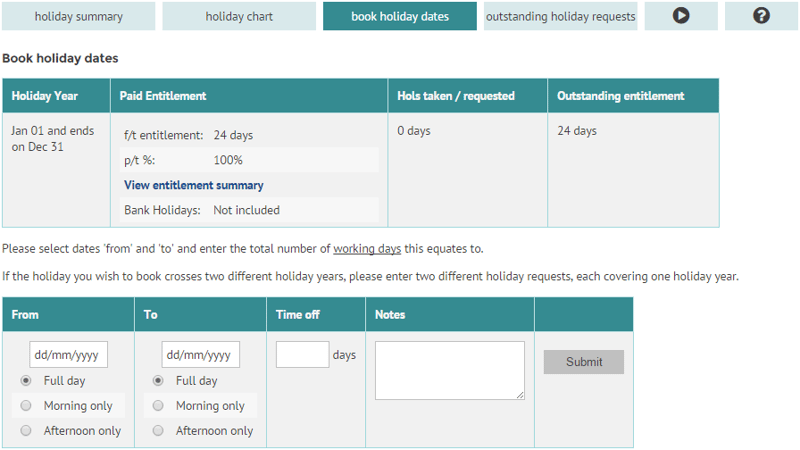
Date pickers will pop up as you fill the form in to make entry easier. Ensure you input the number of your normal working days covered, which may be different from the number of calendar days.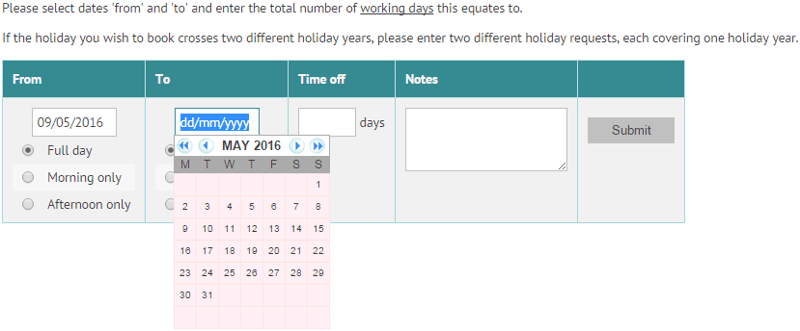
Note – the dates you give are inclusive; so, if booking a single day off, use the same date in both date boxes.
Depending on company policy, the Notes box might be mandatory, used for giving details of who will be providing cover, relevant contact details, etc.
When completed, clicking Submit will show a confirmation screen, allowing you the chance to review your request.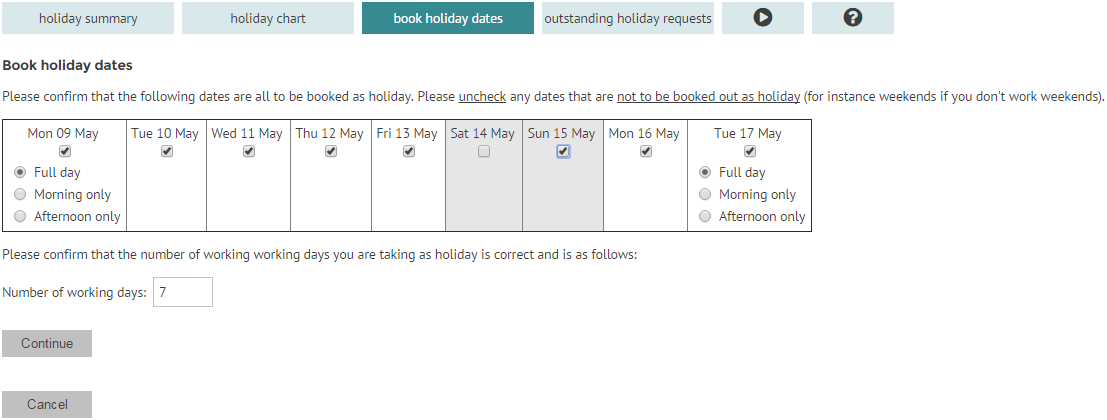
If your dates span any days you would not be scheduled to work, bank holidays, etc. ensure that you deselect them before continuing. If you choose Morning only or Afternoon only, make sure that the Number of working days box is updated in line with agreed company procedure for recognising partial days.
Note – if the days picked and the ‘Number of working days’ do not match, you will be asked to confirm that this was intended, and given the opportunity to go back and correct if not.
After submission, your holiday request will go to your holiday manager(s) for consideration. Your holiday request is not authorised until a holiday manager has approved the request. Depending on company policy, approval may be needed from two holiday managers.
Your holiday summary will now reflect the new request. Should the holiday request need to be withdrawn, following the Withdraw request link will send a holiday withdrawal request to you holiday manager(s).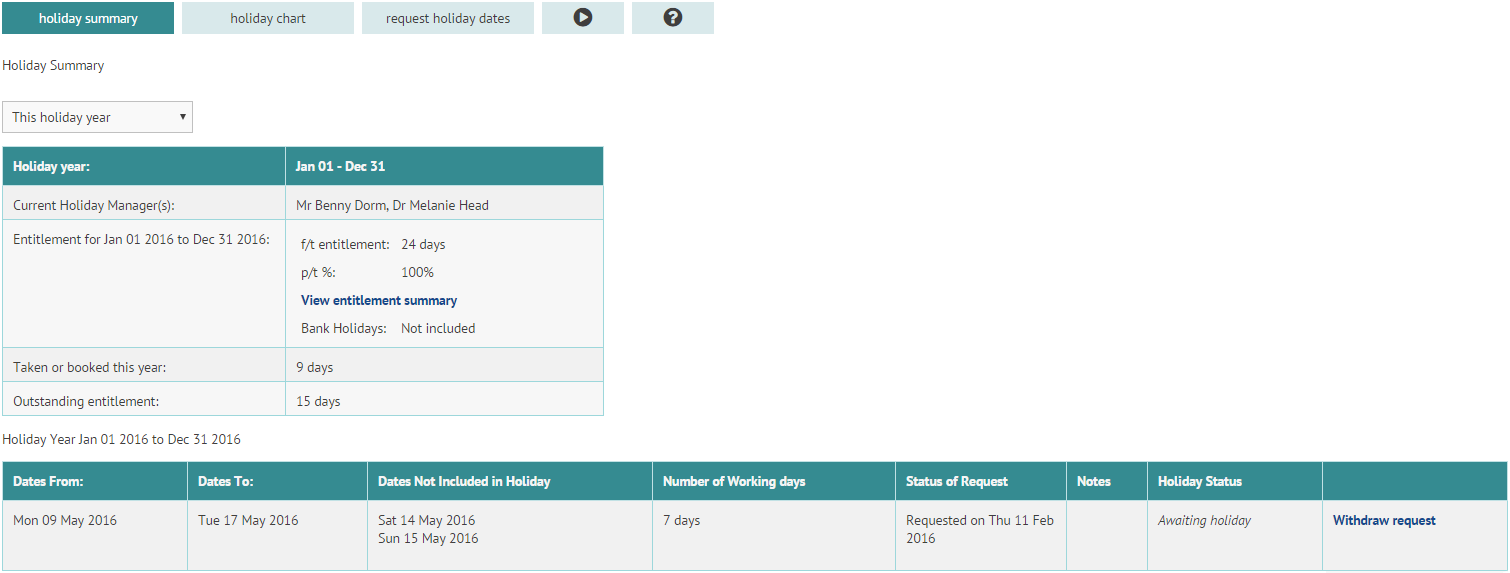
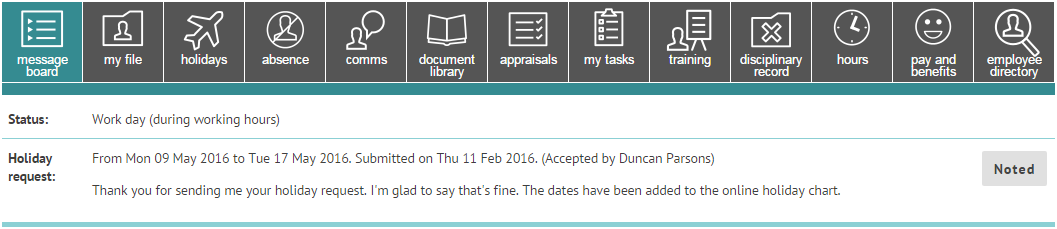
When your holiday (or withdrawal) request has been actioned by your holiday manager (whether approved or declined), you will be notified on your message board and with an email.
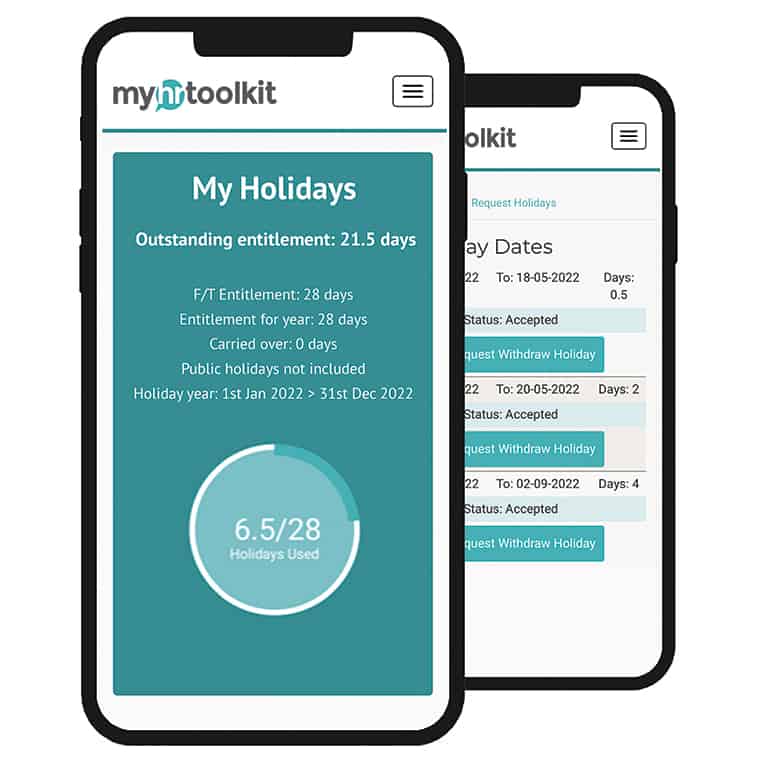
The employee can request to withdraw their own holiday request via Myhome > Holidays & selecting “withdraw holiday” against the relevant entry. This can only be requested for future holiday requests.

Once the withdrawal is selected, the withdrawal request will be sent to their holiday manager for approval and appear on the employee’s Myhome > Holidays as per below, until the request is actioned by their holiday manager(s)

Retrospective dates will need to be withdrawn/deleted by the holiday manager(s)
A holiday manager can over-ride the above process, which can also sometimes be necessary when the holiday withdrawal request is retrospect. For example, an employee was off work due to sickness and unable to take their holiday therefore, you need to delete this and give the employee back their holiday days.
A holiday manager or controller can delete via Management > Holidays > Employee Holiday Dates. Locate the entry & select Delete on the right-hand side and confirm on the next page.

Enjoy your holiday; don’t forget to send a postcard!



 Holiday Planner
 Absence Management
 Performance Management
 Staff Management
 Document Management
 Training Management
 Pay and Benefits
 Reporting
 Health and Safety Management
 Task Management
 Security Centre
 Self Service
 Mobile